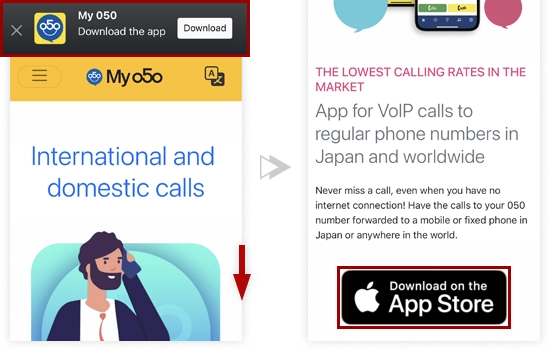
To download the My 050 application click [Download]. Or tap the App Store button.
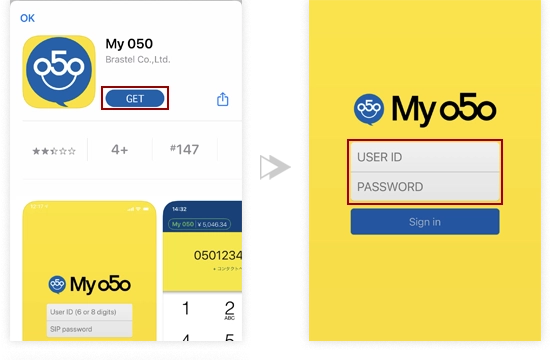
In the App Store Tap "Get" for installation and then "Open".
Enter your USER ID and PASSWORD and tap "Sign In".
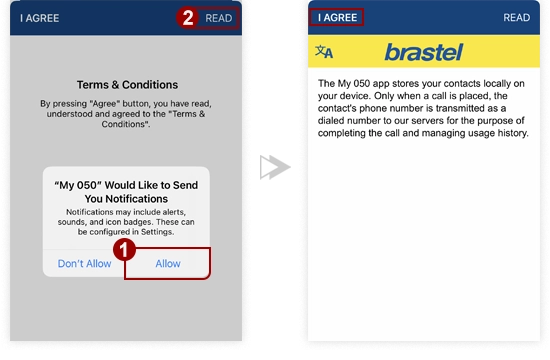
Allow all permissions by tapping on "Allow" and "OK".
Read and accept the Terms and Conditions.
Ready to make calls!
Please note that the My 050 logo in the top left corner should be in green and your account balance should be displayed.
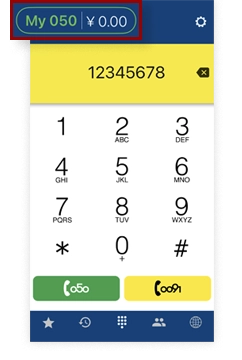
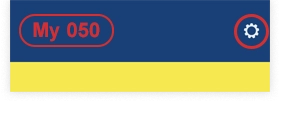
If you don't see a balance or My 050 logo is in red, it means your setup was incomplete. Please go to Settings >> Account Setup and re-enter your USER ID and PASSWORD.
STEP 1
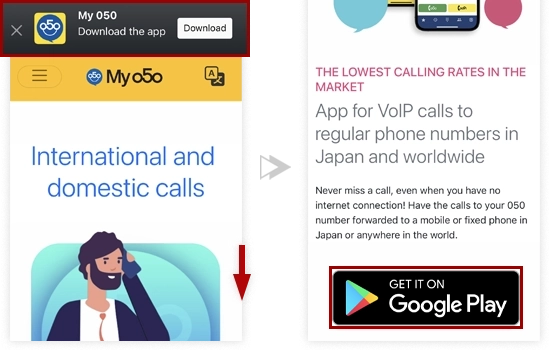
To download the My 050 application click [Download]. Or tap the Google Play button.
STEP 2
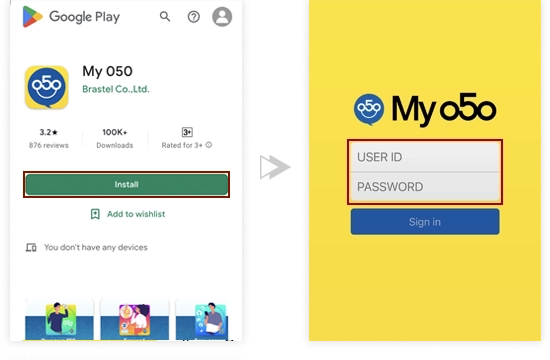
In Google Play tap "Install" and then "Open".
Enter your USER ID and PASSWORD and tap "Sign In".
STEP 3
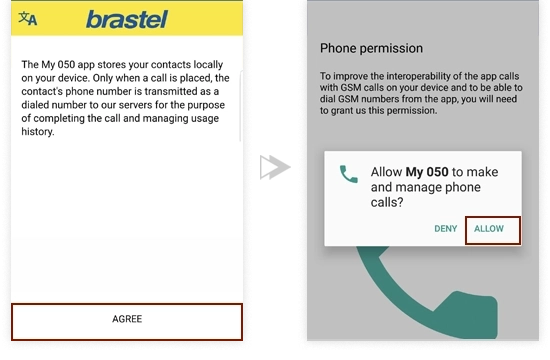
Read the information and tap "Agree".
Allow all permissions by tapping on "Allow" and "NEXT".
Ready to make calls!
Please note that the My 050 logo in the top left corner should be in green and your account balance should be displayed.
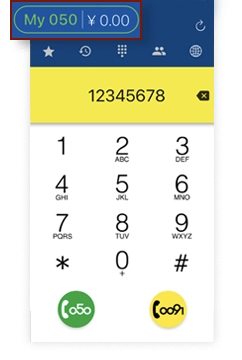
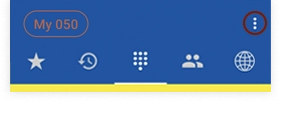
If you don't see a balance or My 050 logo is in red, it means your setup was incomplete. Please go to Settings >> Account Setup and re-enter your USER ID and PASSWORD.
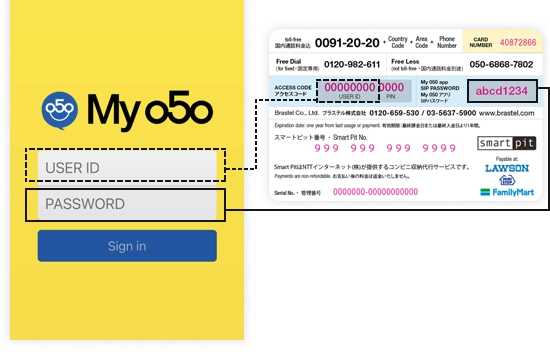
Check your User ID and Password on the back of the card.
Enter the User ID and Password and tap on "Sign In".
Ready to make calls!
Please note that the My 050 logo in the top left corner should be in green and your account balance should be displayed.
If you don't see a balance or My 050 logo is in red, it means your setup was incomplete. Please go to Settings >> Account Setup and re-enter your USER ID and PASSWORD.
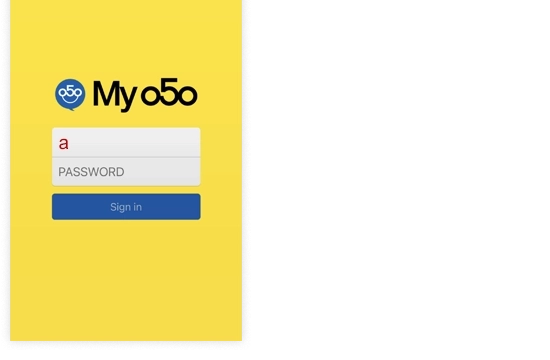
Enter any number or letter in the User ID field and tap "Sign In".
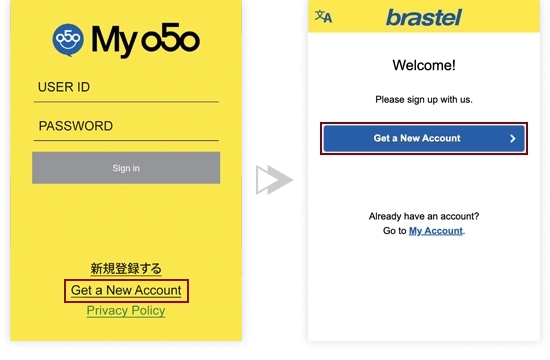
Tap on "Get a New Account" >> "Get a New Account".
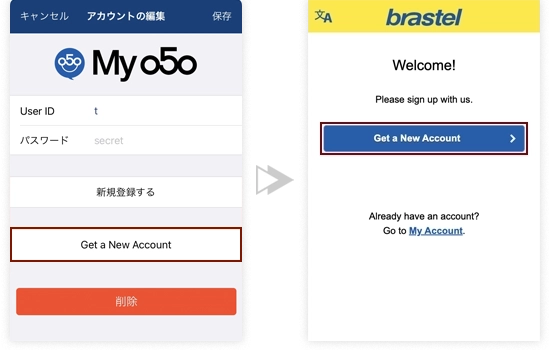
Tap on "Get a New Account" >> "Get a New Account".
Tap on each link, read and agree to the Terms of Use and Privacy Policy. Click "Continue".
Enter your email address.
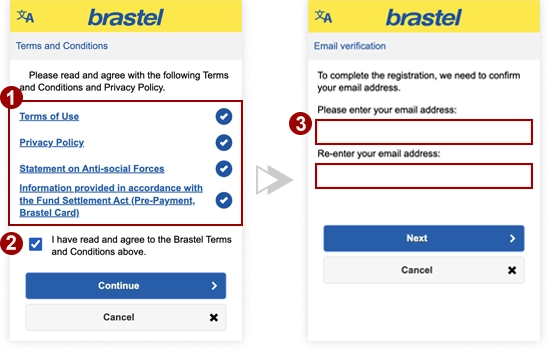
Click on the link in the email to complete your registration.
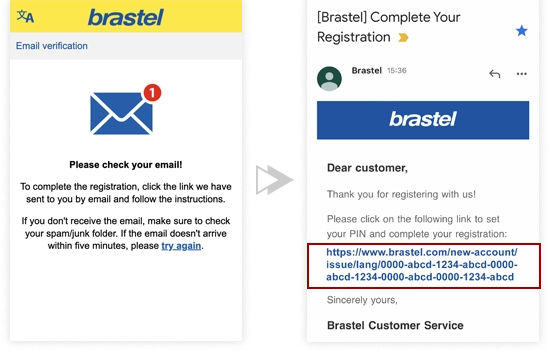
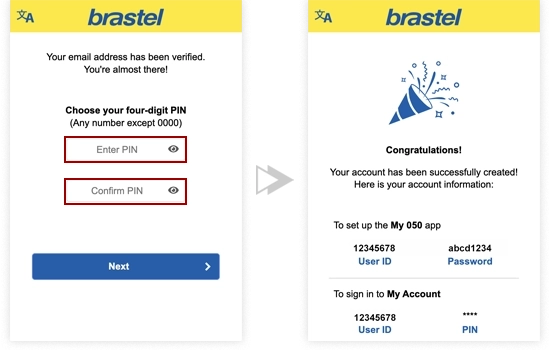
Set your PIN number.
Your account is created!
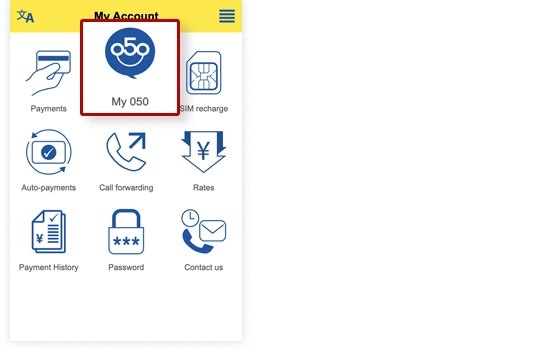
Tap "My 050" in the menu.
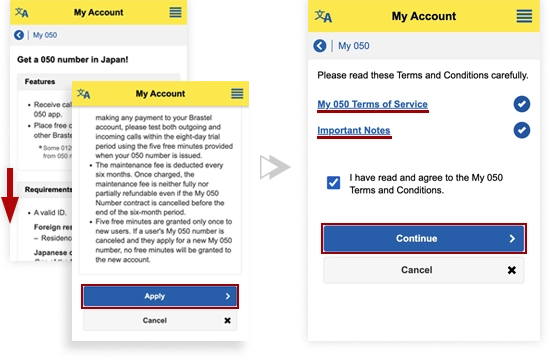
Read the information on obtaining a number before applying.
Tap on each link, read and agree to the Service Terms and Conditions.
Enter your email address.
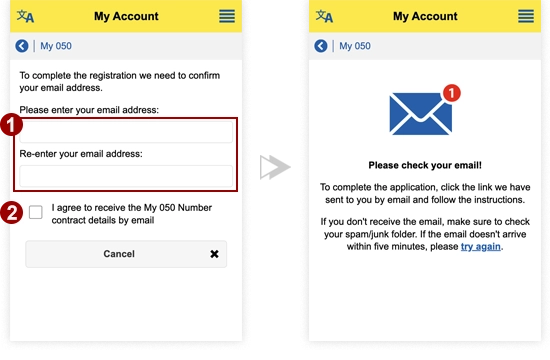
Download the Digital Authentication App.
Then go back to your email and click the "Identify yourself with My Number Card" button.
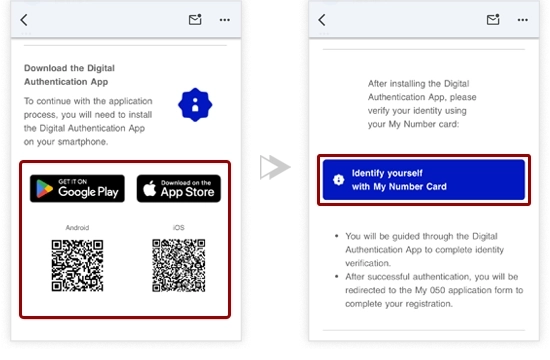
On iPhone, please open the link using Safari.
※ If you see options like Chrome or Google, select Default Browser (this will use Safari if it is set as default). If the link does not open in Safari, please check your iPhone settings and set Safari as your default browser.
Please read carefully before applying.
If you fully understand the above and confirm that this application is for your own legitimate use and does not constitute account lending or any other unauthorized activity, please accurately enter "I am not applying on behalf of a third party" in the field below.

You will not be able to complete the application unless this is entered exactly as shown.
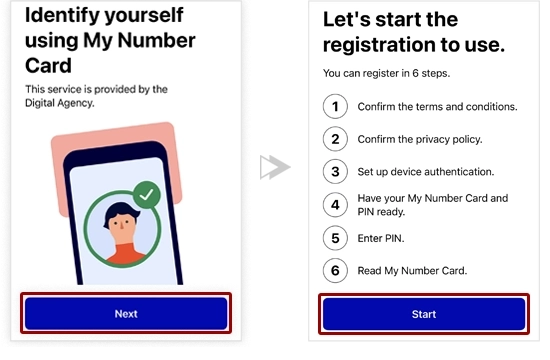
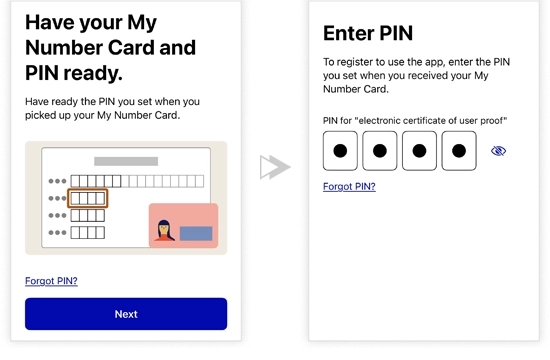
After installing the Digital Authentication App, please verify your identity using your My Number card.
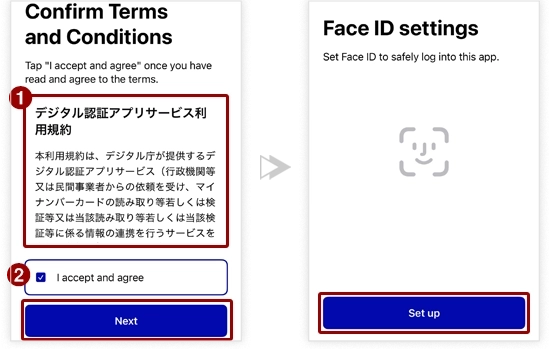
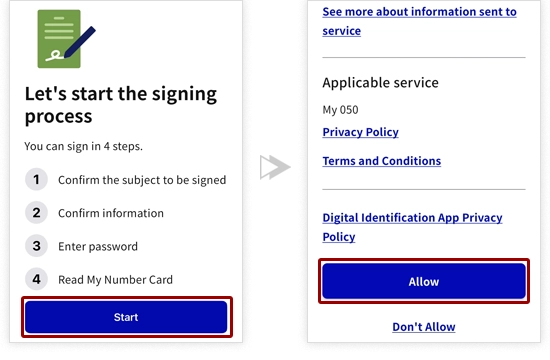
Agree to the Terms and Conditions, then log in using your biometrics.
Please enter your My Number card 4-digit PIN.
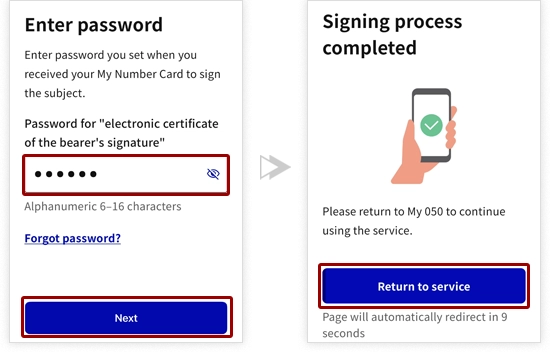
Please enter your My Number card password (6 –16 character alphanumeric password) and complete the eKYC process.
Scroll down and enter your nationality. Then review the information on the screen.
Please read and agree to the important note and tap “SUBMIT”.

We will receive your My 050 number application.
Please wait until the validation process is complete.
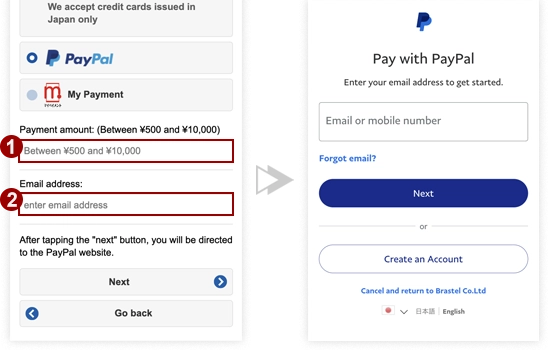
In the menu tap "Payments" >> "Paypal".
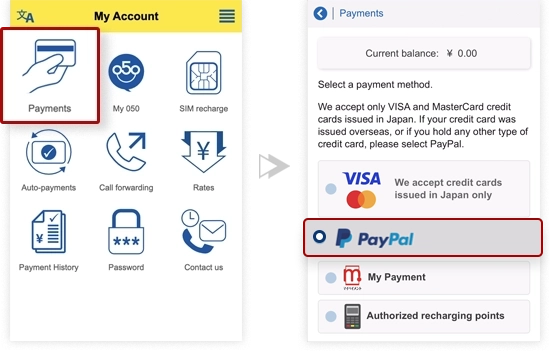
Enter the desired payment amount and your email address. Tap on the "Next" button.
Log into your PayPal account and complete the payment.
You can pay at the following

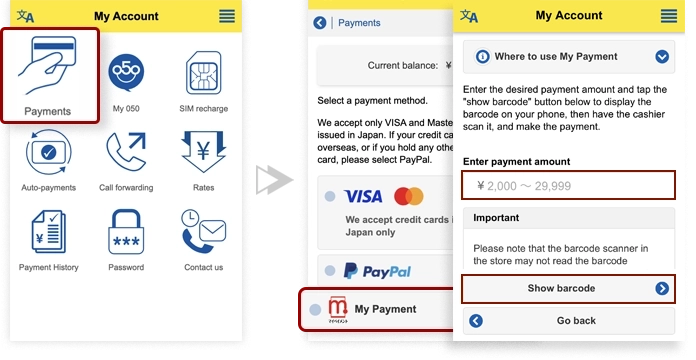
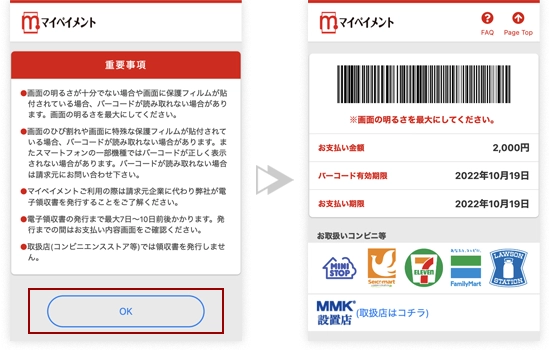
In the menu tap "Payments" >> "My Payment". Enter the payment amount and tap the "Show barcode" button.
Show the displayed barcode to the cashier in the convenience store and make the payment.
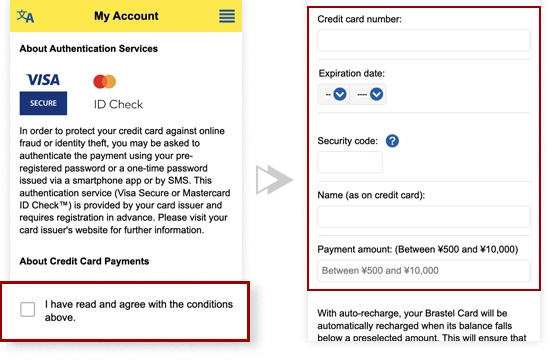
In the menu tap "Payments" >> "Credit Card".
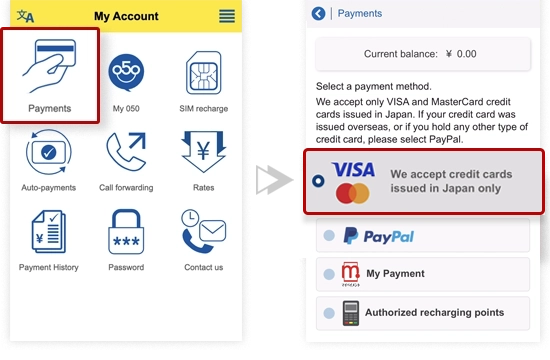
Accept the terms and fill in the form.
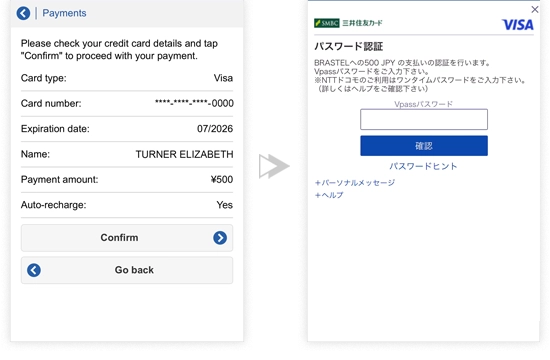
Please check your credit card details and tap "Confirm" to proceed with your payment.
For 3D Secure enabled cards, please enter your security password and click on the 確認 (Confirm) button.
In the menu tap "Payments" >> "Credit Card".
Accept the terms and fill in the form.
Please check your credit card details and tap "Confirm" to proceed with your payment.
For 3D Secure enabled cards, please enter your security password and click on the 確認 (Confirm) button.
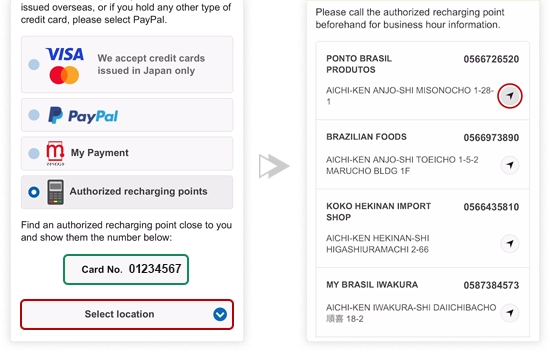
In the menu tap "Payments" >> "Autorized Recharging Points"
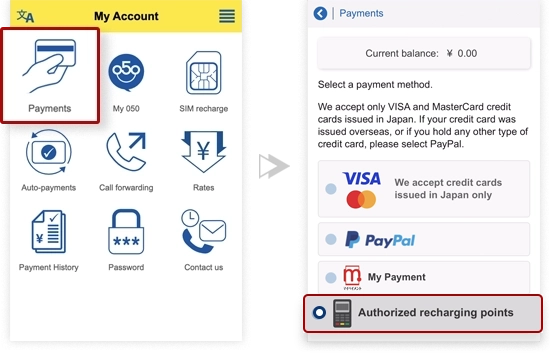
Show the card number indicated below at the recharge point.
Select the prefecture you are in.
Then, a list of authorized charging points in the region will be displayed.
To see the map click on the icon beside.